


Konnect is an advanced API life cycle management platform, meticulously crafted to cater to the needs of the cloud-native era.By utilizing Konnect, developers and organizations are empowered to construct modern applications more efficiently, accelerate the development cycle, and enhance security measures.
At Zelarsoft we help customers across the globe in adopting Kong Products
In Kong Gateway (EE), user has to manage both the Control Plane and Data Plane. Conversely, in Konnect, the Control Plane is hosted in the cloud by Kong, while user manage the Data Plane within their preferred network environment.
Total we have 3 different types of control planes in konnect.
Kong Gateway Control Plane:
This control plane enables the deployment and centralized management of Kong Gateways.
Allows for deploying and managing a cluster of Kong Gateways from a single location.
Provides analytics for monitoring gateway performance and usage.
Control Plane Group:
This feature allows the consolidation of multiple control planes for a segregated configuration setup.
Combines one or more control planes to facilitate specific organizational or functional requirements.
Enables efficient management and organization of control plane resources.
Kong Ingress Controller:
The Kong Ingress Controller enables monitoring and management of Kubernetes-based Kong Gateways.
Provides a unified view of configuration settings for Kong Gateways within Kubernetes environments.
Simplifies monitoring and management tasks through a single interface.
We have control planes under Gateway manager.
Gateway Manager:
Empower your teams with secure collaboration and management capabilities, allowing them to oversee their own data plane nodes and services without jeopardizing other teams or projects.
With Gateway Manager, you gain instant access to a hosted Kong Gateway control plane, facilitating seamless provisioning. Moreover, it offers robust support for securely attaching data plane nodes from your cloud or hybrid environments, ensuring a cohesive and secure management experience.
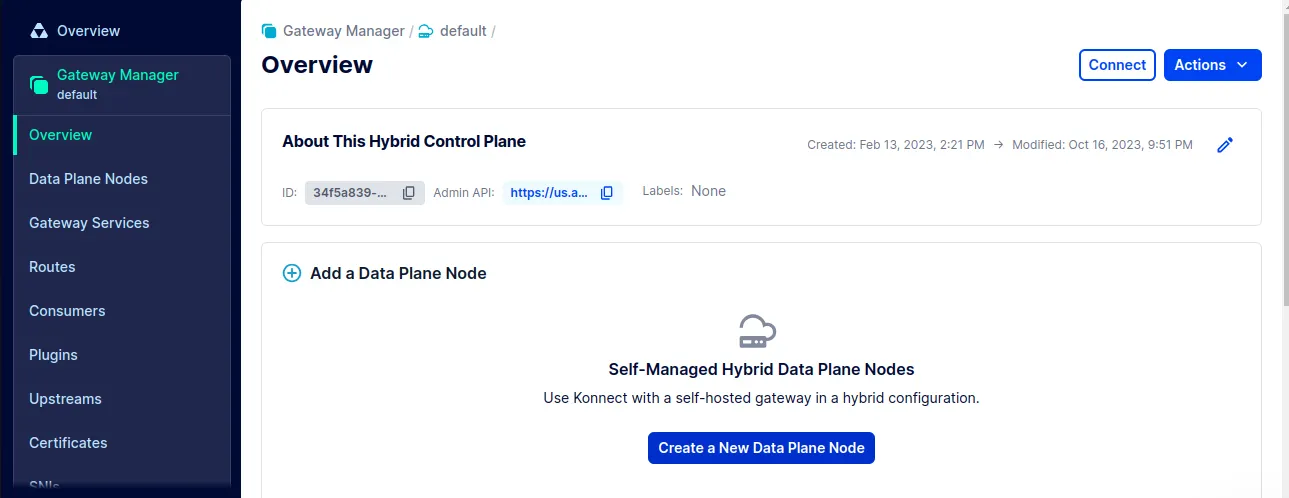
Konnect comes up with control plane called default with kong gateway type. If you want to create your own control plane you can create.
Lets create a new data plane node under default control plane.
Select default control plane and click on create a new data plane node.

Choose the appropriate version and platform for deployment. Opt for Linux with Docker since we’re configuring the data plane within a Docker environment.

Once you select the gateway version and platform it will give you setup script. Copy those script and execute it on your prefered linux machine.

After successfully running your script, you will see a message indicating that the data plane node has been found.

To configure a new Gateway Service in the Gateway Manager, follow these steps:
- Navigate to the Runtimes icon in the Gateway Manager and select the Default control plane.
- From the side navigation bar, select Gateway Services, then click on New Gateway Service.
- In the Add a Gateway Service dialog, proceed to create a new service:
- Name: Enter a unique name for the Gateway service, or choose a Gateway service that hasn’t yet been assigned a version. For this example, use
example_gateway_service. The name can include letters, numbers, or specific characters (., -, _, ~, :). Spaces are not allowed. Acceptable examples includeexample_service,ExampleService,Example-Service, butExample Servicewould be invalid. - Upstream URL: Enter
http://httpbin.org. - Leave the remaining fields at their default settings.
- Click Save to create the service.
- To add a route to your service implementation, click the Add a Route button, now visible on the Gateway service dashboard.
- For this example, configure the route as follows:
- Name: httpbin
- Protocols: HTTP, HTTPS
- Path(s):
/mock - Click Save to finalize the creation of your route.
If you used the Docker script to connect a data plane earlier, your default proxy URL is localhost:8000
Enter the proxy URL into your browser’s address bar and append the route path you just set. The final URL should look something like this:
http://localhost:8000/mockYou will see following response.

In this article, we’ve demonstrated how to set up the data plane in a Linux environment using Docker. It’s important to note that data planes can also be created in various other environments, including VM’s, Kubernetes, and in different cloud platforms.