

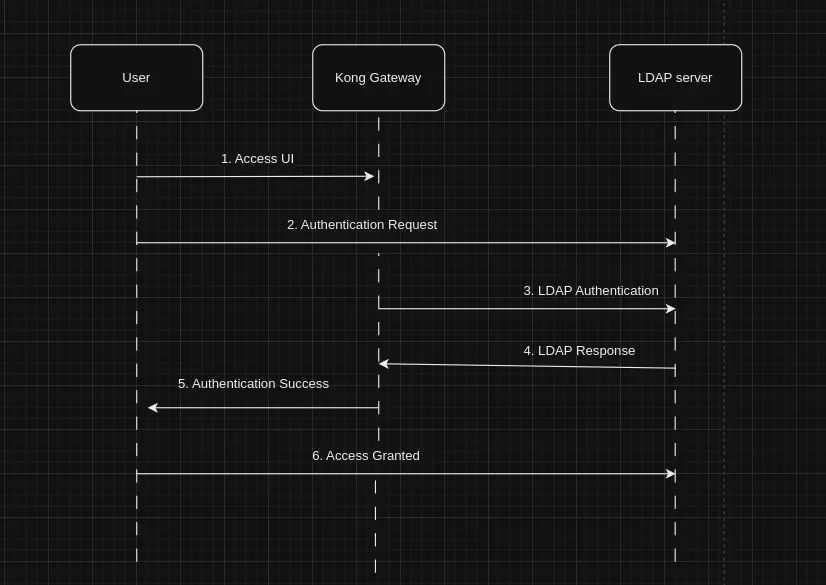

Kong is a powerful API gateway and microservices management tool that helps organizations control and secure their APIs. As organizations grow, the need for centralised authentication and access control becomes increasingly important. In this article, we’ll explore how to set up LDAP (Lightweight Directory Access Protocol) authentication for Kong Manager on an Ubuntu server, enhancing security and user management capabilities.
Before we dive into the configuration steps for Kong Gateway, it’s essential to have an LDAP server set up. If you haven’t done this yet, don’t worry! I’ve written a detailed guide on setting up an LDAP server with user accounts and groups configured, which you can find here. Once your LDAP server is up and running, you can proceed with the steps outlined below to integrate it with Kong Gateway.
Table of Contents:
- Setup Kong Gateway — Enterprise edition.
- Create a LDAP user in kong manager as super-admin.
- Configure LDAP authentication for Kong Gateway.
Step 1: Setup Kong Gateway — Enterprise edition:
1. Install PostgreSQL Database and Kong Gateway on Ubuntu:
PostgreSQL Setup: First, we’ll set up the PostgreSQL database required for Kong’s data storage.
					# Run postgres DB container
docker run -d -p 5432:5432 --name kong-postgres -e POSTGRES_PASSWORD=kong postgres

# Create kong database
docker exec -it kong-postgres bash
psql -U postgres
CREATE USER kong WITH PASSWORD 'kong'; CREATE DATABASE kong OWNER kong;
Kong Gateway Installation: Next, we’ll install the Kong Gateway Enterprise Edition.
					# Download the Kong package:
curl -Lo kong-enterprise-edition-3.4.0.0.amd64.deb "https://packages.konghq.com/public/gateway-34/deb/ubuntu/pool/jammy/main/k/ko/kong-enterprise-edition_3.4.0.0/kong-enterprise-edition_3.4.0.0_amd64.deb"

# Install the package:
sudo apt install -y ./kong-enterprise-edition-3.4.0.0.amd64.deb
# Create a conf file from the default conf
sudo cp /etc/kong/kong.conf.default  /etc/kong/kong.conf
In the kong.conf file, update the following parameters to connect to postgres DB and enable Authentication firstly with basic-auth .
					database = postgres
pg_user = kong
pg_password = kong
pg_database = kong
enforce_rbac = on
admin_gui_session_conf = { "secret":"kong", "cookie_secure": false, "cookie_same_site": "Lax" }
admin_gui_auth = basic-auth
2. Initialize Kong Gateway:
Now, let’s initialize Kong Gateway.
					# Set the admin password using KONG_PASSWORD kong env
sudo KONG_PASSWORD=password kong migrations bootstrap -c /etc/kong/kong.conf

# Start kong gateway
sudo kong start -c /etc/kong/kong.conf
3. Upload Kong Enterprise License:
Lastly, upload your Kong Enterprise license for enforcing Role-Based Access Control (RBAC).
					# Upload Kong Enterprise license
http POST :8001/licenses payload=''
3. Upload Kong Enterprise License:
Lastly, upload your Kong Enterprise license for enforcing Role-Based Access Control (RBAC).


Step 2: Create a LDAP user as the first super admin in kong manager:
Ref: https://docs.konghq.com/gateway/latest/kong-manager/auth/super-admin/
To initiate the process of creating a super admin user in Kong Manager using LDAP authentication,follow these steps:
Note: In this case, the LDAP user
amruthahas read permission on all attributes
- Create Super-admin User in Kong Gateway:
- Go to the
Teamstab in Kong Manager. - Click the
Invite Adminbutton and fill out the form.

- Give the user the
super-adminrole in thedefaultworkspace. - Return to the Admins page, and in the Invited section, click the email address of the user in order to view them.
- Click
Generate Registration Link. - Copy the link for later use after completing the account setup.
- Access the registration link and setup password.
Note: If
register_urldoesn’t contain the Kong manager address as shown in the provided images, simply browse to it without including http://localhost:8002.


2. Inviting Additional LDAP Users with super-admin user.
Super admins have the ability to directly invite other LDAP users, bypassing the registration process. Roles are then assigned based on group mappings or manually determined according to user responsibilities and access levels. This ensures swift on-boarding, granting immediate access with predefined permissions aligned to organizational roles.
Note: If step 4: group mapping is configured for the Kong gateway, then users are not able to be assigned individual roles; it should be done by group-level role access. You will notice that
the plugin ldap-auth-advanced is enabled, and the admin’s roles are managed through service directory group mappingswhile trying to map roles to users. Please find the image below for reference.

Step 3: Configure LDAP authentication for Kong Gateway:
Now, we need to configure the LDAP plugin with the necessary parameters to connect to your LDAP server. This includes specifying the LDAP server’s host, port, base DN (Distinguished Name), and other relevant settings.Here’s a step-by-step guide:
- Update the
kong.confto enable LDAP Authentication replaceadmin_gui_authfrom basic-auth toldap-auth-advancedand addadmin_gui_auth_confconfiguration details. Here’s an example configuration:
					admin_gui_auth = ldap-auth-advanced
admin_gui_auth_conf = {                                       \
    "anonymous":"",                                           \
    "attribute":"cn",                \
    "bind_dn":"cn=amrutha,ou=devops,dc=kong,dc=in",                \
    "base_dn":"dc=kong,dc=in",                    \
    "cache_ttl":60,                                           \
    "consumer_by":["username", "custom_id"],                  \
    "header_type":"Basic",                                    \
    "keepalive":60000,                                        \
    "ldap_host":"localhost",                \
    "ldap_password":"Amrutha@123",        \
    "ldap_port":389,                                          \
    "timeout":10000                                     \
}
NOTE:
1. Make sure you replaced your LDAP detailsldap_host,ldap_password, ldap_port, bind_dn,base_dn, group_base_dn, groups_required(In my case the ldap server running in my local ubuntu with http port 389).
Let’s restart Kong Gateway to apply LDAP configuration changes and enable LDAP authentication for Kong Gateway manager.
					# Restart Kong to apply the new configuration
sudo kong restart -c /etc/kong/kong.conf
Step 4: LDAP Service Directory Groups Mapping:
Integrating LDAP service directory groups with Kong Gateway roles streamlines access control. Configuring Kong Gateway to interface with LDAP enables seamless alignment of LDAP group memberships with Kong roles. This integration centralizes user access management across the API ecosystem, ensuring Kong Gateway access privileges accurately reflect LDAP group memberships.
Creating Groups and Mapping to Kong Roles:
Before proceeding with LDAP group mapping, it’s necessary to create corresponding groups within Kong Manager. Follow these steps:
- Navigate to the
Teamspage in Kong Manager or use the Admin API’s RBAC endpoints to define roles with associated permissions. - In Kong Manager, locate the
Groupstab underTeamsto manually link Kong roles to groups in the service directory. - Click the
New Groupbutton and fill out the form. - Click
Add/Edit Roles, Select role to assign permissions within a workspace for this service directory group. - Click
Create. follow below images for refernece.


Note: Kong Gateway does not directly modify the service directory. Ensure administrative tasks like user and group creation are done separately.
By incorporating the following parameters into the kong.conf LDAP configuration, LDAP authentication with group mapping is enabled:
					"group_base_dn": "dc=kong,dc=in",
"group_name_attribute": "cn",
"group_member_attribute": "memberOf",
"groups_required": ["appdev-team", "devops-team"]
These parameters facilitate direct mapping of LDAP service directory groups to Kong roles, enhancing access control based on group memberships.
Your final kong.conf with LDAP authentication and group mapping configuration looks like this:
					admin_gui_auth = ldap-auth-advanced
admin_gui_auth_conf = {                                       \
    "anonymous":"",                                           \
    "attribute":"cn",                \
    "bind_dn":"cn=amrutha,ou=devops,dc=kong,dc=in",                \
    "base_dn":"dc=kong,dc=in",                    \
    "cache_ttl":60,                                           \
    "consumer_by":["username", "custom_id"],                  \
    "header_type":"Basic",                                    \
    "keepalive":60000,                                        \
    "ldap_host":"localhost",                \
    "ldap_password":"Amrutha@123",        \
    "ldap_port":389,                                          \
    "timeout":10000,                                     \
    "group_base_dn": "dc=kong,dc=in",
    "group_name_attribute": "cn",
    "group_member_attribute": "memberOf",
    "groups_required": ["appdev-team", "devops-team"]
}
Let’s restart Kong Gateway to apply LDAP configuration changes to syncing LDAP directory groups with Kong roles.
					# Restart Kong to apply the new configuration
sudo kong restart -c /etc/kong/kong.conf
Testing LDAP Authentication
With the LDAP plugin configured, you can now test the LDAP authentication for Kong Manager:
- Access Kong Manager in your web browser(http://localhost:8002).
- You will be prompted to log in. Enter the LDAP username and password associated with your LDAP server.
- If the credentials are correct, you should be successfully authenticated and granted access to Kong Manager.
Conclusion
Kong Manager’s LDAP integration simplifies authentication and user management for API gateway administrators. By leveraging LDAP’s centralised user and group management capabilities, organizations can enhance security, streamline access control, and provide a seamless user experience for their developers and administrators.
Whether you’re looking to improve the security of your API infrastructure, streamline user management, or enable single sign-on, Kong Manager’s LDAP integration offers a powerful solution that can simplify these processes while providing the robust security required in today’s digital landscape.