


Overview:
Preventing unauthorized sharing of PII/ Sensitive information is an important objective of many organizations. Example of sensitive information is Date of Birth, Medical Record Number, and U.S. Social Security Number. Office 365 provides tools and processes to detect, alert and prevent such sharing of data. We help customers to implement these processes using our expertise in Office 365. This blog details our learnings from our recent implementations. The Audience are fellow Office 365 Administrators.
Solution approach
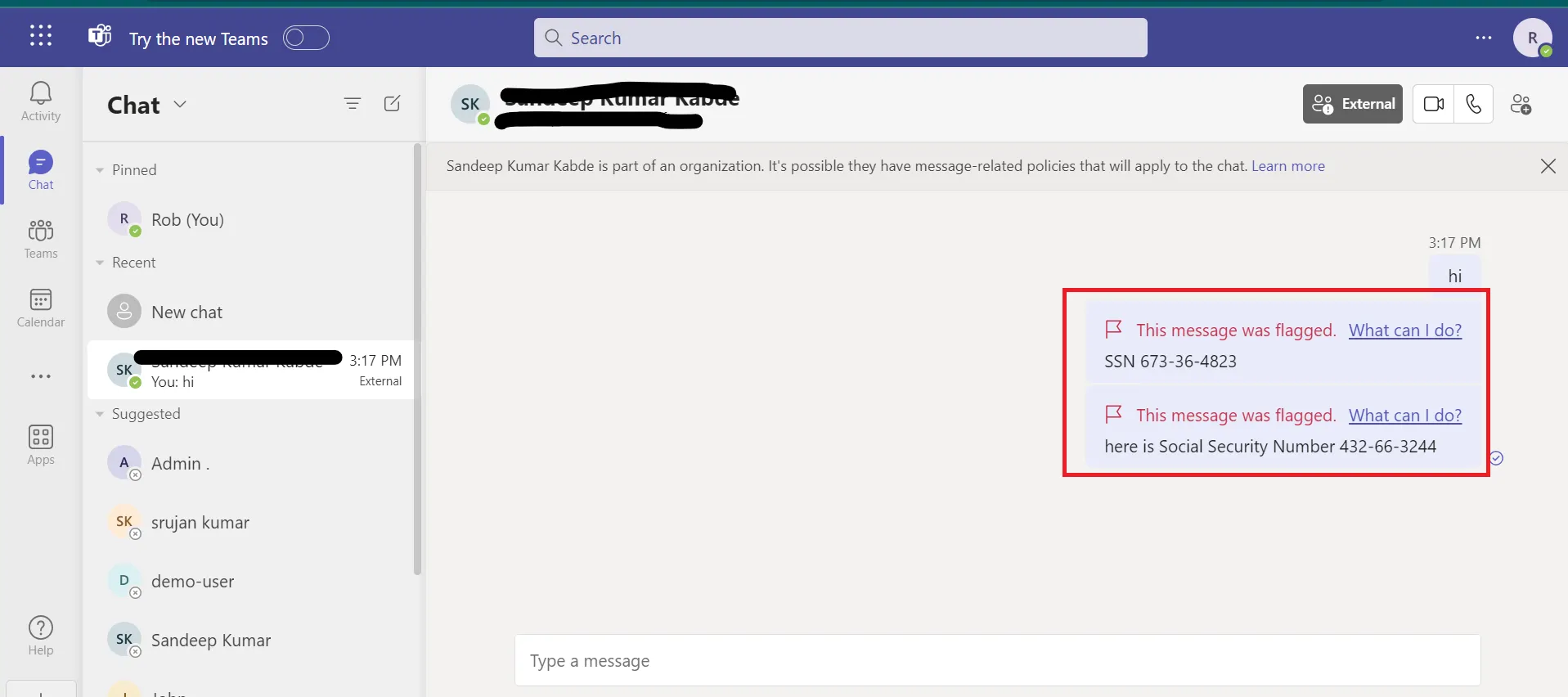
DLP or Data Loss Prevention involves the identification, monitoring, and protection of Sensitive data within an organization. This is part of the Business Premium and Enterprise plans of Office 365. DLP can be configured to monitor the content in Emails, Teams Conversations, Office Documents and files in Devices to match the DLP policies defined. For example, below are the screenshots for policy matches for DOB Sensitive info Type.
In Teams:
If a user tries to share sensitive info with an external recipient in Teams, they’ll receive a notification message.
Press enter or click to view image in full size

In Outlook:
If a user attempts to email confidential information to an external recipient, they’ll see a policy tip.

In OneDrive:
If a user tries to share sensitive info via OneDrive link with an external recipient, a policy tip will be shown.
Press enter or click to view image in full size

Sensitive Info Type: You may not need to write a RegEx for every requirement.
Requirement: Identify the Sensitive information of “Date of Birth” from the content.
Challenge: Creating a RegEx pattern for US and UK date formats is complex due to variations in how dates are written. For example: 14 January 2023, 24/10/2023, 03/31/2022, February 14, 2022
Our Learning: Sensitive information types (SIT) can use functions as primary elements for identifying sensitive items. We have reused date functions from the Microsoft’s predefined sensitive info type functions.
For example: Func_us_date, Func_eu_date
How to identify Sensitive Information Type with High Confidence?
Problem: An organization can store many types of Date information, For example: Anniversary dates, Invoice due dates, Date of Birth etc.. Identifying a particular series of characters as Date value is easy but classifying it as Date of Birth (and not an Anniversary date) is challenging. At best you can classify this with only Low Confidence.
Our Learning: Solution to this is to rely on context using Keywords. For example, in a document a sentence could be “Suresh’s date of birth is 12/4/1980”. In this sentence the phrase “date of birth” is providing the context indicating with High Confidence that the given date pattern is indeed a Date of Birth. In SIT we classified it as High Confidence when the Date pattern matches along with keywords like “Date of birth, DOB, Birth Date” etc..
Sensitive Info Type: Limitations of Regular Expressions (RegEx) in Office 365
For Example, we are trying to classify sensitive data information type “Medical Record Number” for the below formats.
Pattern: Length 6–12 characters, Alphanumeric, with 2 patterns, all numbers, or minimum of 1 number, 1 alphabet.
Sample Data: 198760, 461810, 1108870, 748720, E1524312, E2321264, E315187, E2930941, 000320909
We identified two patterns from the given requirement. We used ChatGPT to generate RegEx based upon our requirement 🙂
- Pattern #1 — Written a regular expression (Regex) to detect numeric sequences with 6–12 digits (Example: 13234324,7324823).
RegEx:\d{6,12}$
Problem: The difficulty is any 6–12-digit numbers considered as a sensitive data.
Solution: To boost confidence in finding sensitive data, we added certain keywords to the RegEx pattern.
For Example: Sensitive Information Pattern (3478252) + Keywords (MRN, Medical Record Number etc..) - Pattern #2 — ChatGPT provided a RegEx for 6 to 12 characters (e.g., M32764823), requiring at least one digit or character in any order.
RegEx: ^(?=.*\d)(?=.*[a-zA-Z]).{6,12}$
Problem: We got an error while configuring sensitive information pattern.
Press enter or click to view image in full size

Solution: As per the Microsoft’s allowed RegEx Patterns, we cannot configure a RegEx pattern with groups or multiple match conditions like (.*, .+, .{0,n} or .{1,n}). We need to Remove the group or the multiple match conditions from the pattern. Asked ChatGPT to simplify the previous RegEx without any groups and multiple match conditions.
The revised RegEx: “?=.{6,12}$)([a-zA-Z0–9]*[a-zA-Z]+[a-zA-Z0–9]*[0–9]+[a-zA-Z0–9]*|[a-zA-Z0–9]*[0–9]+[a-zA-Z]+[a-zA-Z0–9]*” This worked.
Sensitive Info type: String Vs Word Match
The selection between string and word-level matching depends on the context and the type of sensitive information being sought.
A string match recognizes strings regardless of their surrounding context.
Use “string” if keyword included in the substrings.
For example, “ID” matches both “Bid” and “idea”.
A word match recognizes complete words enclosed by white space or other delimiters. Choosing Word match appends the following non-capturing groups to the regex — (?:^|[\\s,;\\:\\(\\)\\[\\]\”’]) and (?:$|[\\s,\\;\\:\\(\\)\\[\\]\”’]|\\.\\s|\\.$) before & after the regex defined in the regex field to ensure the entity is detected as a standalone word.
For Example: A word “Attachment”.
RegEx: (?:^|[\s,;\:\(\)\[\]”’])((?=.{6,12}$)([a-zA-Z0–9]*[a-zA-Z]+[a-zA-Z0–9]*[0–9]+[a-zA-Z0–9]*|[a-zA-Z0–9]*[0–9]+[a-zA-Z]+[a-zA-Z0–9]*))(?:$|[\s,\;\:\(\)\[\]”’]|\.\s|\.$)
Press enter or click to view image in full size

By nature String match is only for specific use cases, and would take a lot of time to detect. Word match is common and serves most of the use cases.
DLP Policies: Consider reusing predefined DLP policies
Use Microsoft Purview’s built-in DLP templates for easy implementation. These templates have predefined rules to detect and protect sensitive information. Customize by copying and then customizing the rules as necessary.
For example, We reused U.S. State Social Security Number Confidentiality Laws template to identify the SSN information on Exchange, SharePoint, Teams, Device locations and configured the actions as per the organizational needs.
Press enter or click to view image in full size

Press enter or click to view image in full size

Press enter or click to view image in full size

DLP Policies: You may need to create multiple policies for the same sensitive info type
Creating multiple policies for the same sensitive information type in Office 365 allows for fine-tune control and customization. Depending on the location where the sensitive content was found, DLP allows you to configure actions specific to that location. For example: If only Exchange was the location, there is an action is provided to do encryption of the email. This option is NOT provided if all the content locations are selected. When all the locations are selected only few conditions common to all locations are shown.
For example, Selecting Exchange & SharePoint as a content location, provides these conditions for filtering the content.
Press enter or click to view image in full size

For example, Selecting only Exchange as a content location, provides more actions options
Press enter or click to view image in full size

In our case, the requirement was to block sharing of sensitive information outside the organization. Sharing is possible through SharePoint, OneDrive, Teams and Exchange. With these locations selected, we configured one policy. Our scope included protecting Devices too. But when Devices as location is added, the action specified previously was not visible. So we created policy two for Devices.
Policy for “Devices” location and available actions:
Press enter or click to view image in full size

Press enter or click to view image in full size

DLP Policies: Comparison between Data Classifiers confidence level and DLP Policies have a confidence level for each Classifier we choose.
The confidence level of a Data classifier measures the algorithm’s accuracy in correctly recognizing sensitive information. When creating a DLP policy, we have an option to choose specific classifiers and define a confidence level for each data classifier. Here, Confidence level measure a classifier’s certainty in identifying sensitive information, guiding DLP policies on when to take action.
For example, if you set a confidence level of 80% for a data classifier, the DLP policy will only take action on identified sensitive information if the classifier is at least 80% confident that it has correctly identified the information. Confidence levels are a measure of how certain a classifier is in identifying sensitive information, and DLP policies use confidence levels to determine when to take action on identified sensitive information.
DLP Policies: Why Instance count is important?
Configure instance count in DLP along side the classifier; it represents how many times sensitive information is identified from the content. For example from the sentence “patient date of birth 23/12/2010” the sensitive information type date of birth identified one time by the classifier and severity alert will be triggered depending on the sensitive data volume of instance count.