


About Styra
Styra, the founders of Open Policy Agent (OPA), provides open-source and commercial solutions that enable enterprises to define, enforce and monitor authorization policy across their cloud-native applications, as well as the infrastructure they run on. Styra policy-as-code solutions let developers, DevOps, and security teams mitigate risks, reduce human error and accelerate application development.
Styra Declarative Authorization Service (DAS) is now integrated with Kong Mesh, an enterprise-grade service mesh built on top of open-source Kuma, so security and operations teams can more easily meet internal and external regulations. Styra DAS and Kong Mesh together give teams granular control over traffic flow, and the real-time monitoring and historical audit records required to secure services and prove compliance.
Styra and Kong now offer a turnkey solution for deploying OPA and Kuma that delivers the service proxies and policy-as-code controls needed to establish or deny traffic to, from, or between individual microservices and apps. With the new integration of Styra DAS and Kong Mesh, individuals have the collaboration tools and visibility required to manage policy-enabled traffic control at scale.
Styra DAS and Kong Mesh enable IT, Security, and Governance, Risk Management, and Compliance (GRC) teams to:
- Reduce operational overhead with automated policy-as-code-based control of multiple service meshes.
- Govern, monitor, and audit traffic flow and policy decisions for real-time verification of performance and risk.
- Increase application reliability with policy-based traffic management.
- Manage microservices policy lifecycle from initial authoring all the way through deployment and monitoring.
- Rapidly implement leading open-source solutions OPA and Kuma on a global scale.
Overview
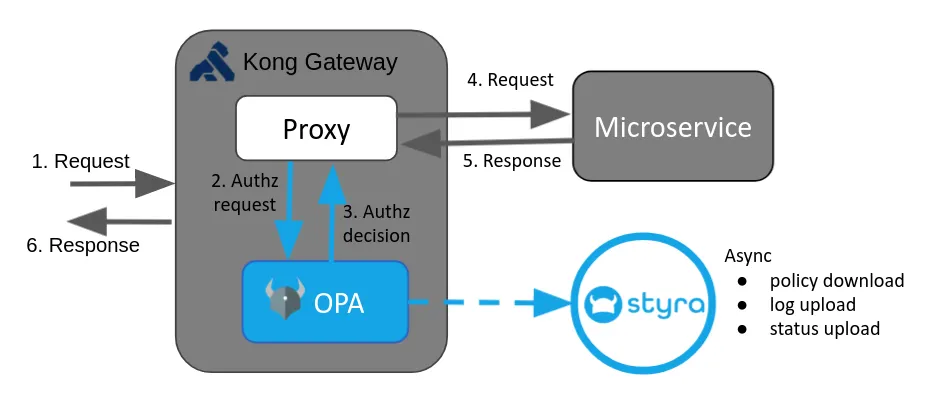
The Styra DAS Kong Gateway system type helps you manage the client API requests permitted within your OPA-integrated Kong Gateway. For example, permit API requests only to predefined backend APIs to minimize the risk of data exfiltration or implement microservice API authorization. For more information see the Kong Gateway tutorial.
Kong Gateway is an Open Source Software (OSS), lightweight API gateway optimized for microservices, delivering unparalleled latency, performance, and scalability. Kong Gateway evaluates incoming client API requests and routes them to the appropriate backend APIs. While routing requests and providing responses, OPA policies can be applied via plugins.

This tutorial shows how OPA can be integrated with Kong Gateway for API authorization and enforce security policies over client API requests received by Kong Gateway.
Kong Gateway Policy Enforcement with OPA. Learn to use OPA as an external authorization agent for ingress controller in Kong Gateway
1. Kong Gateway system creation
A system is Styra’s core unit for policy authoring, validation, and distribution.
- Click Create system
- Click the system type drop-down and select Kong Gateway
- Name your new Kong Gateway system
- Optionally enter a Description
- Leave Read-only switch off
- Click Create system
- Do not follow the install steps yet; we will get to those shortly!
2. Prerequisite
- StyraDAS Account. If you don’t have a Styra DAS tenant, you can sign up for a free tenant here(Signup).
- Docker, Kubectl & helm install.
- Styra recommends that you use minikube version v1.0+ with Kubernetes 1.14 or later.
- Styra strongly recommends you create a new cluster in a clean minikube environment.
- For Minikube assistance see this link.
API Gateways are extremely useful when managing access to microservices within an organization. It externalizes authorization decisions to a centralized authorization service which is the key to policy compliance and activity auditing.
You will need a Kubernetes cluster and CLI access with kubectl.
Note: You will need Kong Gateway installed on your system. Use Helm to install Kong via the official Helm chart, Kong for Kubernetes is an Ingress Controller based on the Open-Source Kong Gateway.
Use example helm installation commands provided below and also refer to the Official Kong installation document:
helm repo add kong https://charts.konghq.com && helm repo update && helm install kong-quickstart kong/kong -n kong --create-namespace
Note — This process could take up to five minutes to complete for the first time.
3. Kong Gateway system configuration
To configure Kong Gateway with OPA as a sidecar for authorization policies, use the following DAS install instructions.
You will install the Styra Local Control Plane (SLP) to act as a cluster-level OPA bundle cache to help with restarts.
Select the different folders below to get guidance on where to find the install instructions
To configure Styra on Kong Gateway, you must copy and paste all the installation commands from SYSTEMS >> Settings >> Install. This command installs the Custom Kong plugin for OPA, configures the Kong plugin for OPA authorization, and configures OPA to connect to DAS via Styra Local Plane (SLP).
Zelar-Practice▸ Settings tab▸ Install
Next, accomplish the following tasks.
From “kubectl” tab

- Install the Custom Kong plugin for OPA
curl -H ‘Authorization: Bearer OS3_20OSw4w3ny9t0A9FwF2NbeQEl687W_YkUhIXUJFv1QUUJqP2JZCigKZRNuLjVZ-us2n38qGmNk4z6jS2euAwvHYi1mvaULbZXw’ https://<Your.TenentID>/v1/systems/b4b235c0c90d4c6192fa87d6d4ca6940/assets/custom-kong-plugin.yaml | kubectl apply -f -
2. Configure the Kong plugin for OPA authorization
curl -H ‘Authorization: Bearer OS3_20OSw4w3ny9t0A9FwF2NbeQEl687W_YkUhIXUJFv1QUUJqP2JZCigKZRNuLjVZ-us2n38qGmNk4z6jS2euAwvHYi1mvaULbZXw’ https://<Your.TenentID>/v1/systems/b4b235c0c90d4c6192fa87d6d4ca6940/assets/kong-plugin-config.yaml | kubectl apply -f -
NOTE — This applies to the Unix Domain Socket(UDS) based configuration. Please refer to the `tutorials` section in the Documentation to know how to apply HTTP-based configuration
Kong Plugin Configuration File
The Kong plugin configuration file added in the Install section can be used to configure Unix Domain Socket (UDS) based plugin. If you want to configure HTTP based plugin, then save the following KongPlugin configuration content into a new file (suggested name kong-plugin-http-config.yaml) and execute kubectl -f apply kong-plugin-http-config.yaml command to apply the configuration.
---
apiVersion: configuration.konghq.com/v1
kind: KongPlugin
metadata:
  name: kong-plugin-opa
config:
  server:
    host: localhost
    port: 8181
  policy:
    decision: main/main
plugin: opa
3. Configure OPA to connect to DAS
curl -H ‘Authorization: Bearer OS3_20OSw4w3_dummy_dummy_2JZCigKZRNuLjVZ-us2n38qGmNk4z6jS2euAwvHYi1mvaULbZXw’ https://<Your.TenentID>/v1/systems/b4b235c0c90d4c6192fa87d6d4ca6940/assets/opa-config.yaml | kubectl apply -n kong -f -
4. Install Styra Local Plane (SLP)
curl -H ‘Authorization: Bearer OS3_20OSw4w3ny9dummy_dummyJZCigKZRNuLjVZ-us2n38qGmNk4z6jS2euAwvHYi1mvaULbZXw’ https://<Your.TenentID>/v1/systems/b4b235c0c90d4c6192fa87d6d4ca6940/assets/slp-deployment.yaml | kubectl apply -n kong -f -
SLP: Styra Local Plane (SLP) is a service that acts as an intermediary between the OPAs and Styra DAS. OPAs are configured to retrieve bundles from SLP rather than directly from DAS. This increases availability as SLP fetches bundles from Styra DAS and persists them to disk, so policies are still available to new or restarted OPAs even if Styra DAS is unavailable.
From the “helm values download” tab

5. Download Helm values.YAML file with OPA sidecar
curl -H ‘Authorization: Bearer OS3_20OSw4w3ny9dummy_dummy_kUhIXUJFv1QUUJqP2JZCigKZRNuLjVZ-us2n38qGmNk4z6jS2euAwvHYi1mvaULbZXw’ https://<Your.TenentID>/v1/systems/b4b235c0c90d4c6192fa87d6d4ca6940/assets/opa-sidecar-values.yaml > opa-sidecar-values.yaml
OPA Sidecar Values YAML Configuration File
You must save the Sidecar deployment configuration into a new file (suggested name opa-sidecar-http-values.yaml), execute helm upgrade kong-quickstart kong/kong -n kong -f opa-sidecar-http-values.yaml command to apply the configuration, and finally, execute kubectl get pods -n kong -w command to watch for the Pod status to appear as Running status.
# -----------------------------------------------------------------------------
# Deployment parameters for HTTP configuration
# -----------------------------------------------------------------------------
deployment:
  sidecarContainers:
    - image: openpolicyagent/opa:latest
      name: opa
      volumeMounts:
      - readOnly: true
        mountPath: /config
        name: opa-configargs:
      - "run"
      - "--server"
      - "--config-file=/config/conf.yaml"
      - "--addr=http://localhost:8181"
      ports:
      - containerPort: 8181
  userDefinedVolumes:
  - name: opa-config
    configMap:
      name: opa-configplugins:
  configMaps:
  - name: kong-plugin-opa
    pluginName: opa
NOTE — If you’re using HTTP-based configuration, please refer to the `tutorials` section in the Documentation to know more about how to apply helm values for HTTP-based deployment
Update the Kong deployment to integrate with OPA for authorization
helm upgrade kong-quickstart kong/kong -n kong -f opa-sidecar-values.yaml
IMPORTANT — verify all pods are in a running state before moving to the next step
Execute kubectl get pods -n kong -w command to watch for the Pod status to appear as Running status.
kubectl get pods -n kong

4. Sample application deployment
To download and deploy a sample app
Be sure kubectl is configured to point to the cluster you want to use for the Kong Gateway example application.
curl -H 'Authorization: Bearer AzDKADSLHCNfJ_dummy_dummy_Q2HkOTPSvBgHVwyF-RdyK2PouTQSYz74FADWv80voHEwxucUoM8yAD08W' https://<Your.TenentID>/v1/system-types/template.kong-gateway:1.0/assets/quickstart/sample-app.yaml | kubectl apply -f -
The sample app consists of one deployment encompassing three items
1. sample-app, a service to expose the sample-app HTTP services
2. sample-ingress for sample-app routing
3. A loop to fire requests at the service every <15> seconds

example-app: A simple HTTP web server that allows employees of a hypothetical organization to obtain salary details on the path /finance/salary. It also exposes a path /hr/dashboard that is only accessible by employees who are part of HR. Functionally, it is a simple echo server that returns an HTTP 200 response with a plain or text body that contains a success or error message.
The Kong plugin for OPA can be enabled on a Service, Route, or Ingress. In this sample, it is enabled on an Ingress.
curl -is — user alice:password ingress-kong/finance/salary/alice
curl -is — user bob:password ingress-kong/finance/salary/alice
curl -is — user bob:password ingress-kong/finance/salary/charlie
curl -is — user david:password ingress-kong/finance/salary/bob
curl -is — user david:password ingress-kong/hr/dashboard
curl -is — user eve:password ingress-kong/admin
IMPORTANT — Verify that the sample is loaded and running
kubectl get pods

View the requests being made to the sample app.
kubectl logs $(kubectl get pods -l app=client-load -o jsonpath='{.items..metadata.name}')

5. Decision auditing
To understand what decisions are being made based on current policy
Note — The sample app is regularly running API requests, and each API request received by Kong Gateway will be sent to OPA for an authorization decision.
To see what decisions OPA has made, you can look at the decision log.
Zelar-Practice▸ Decisions
Verify that everything is set to allow. This is because the ingress policy is populated with the default rule as allowed. This can be changed by authoring your own policies.
By default, the ingress policy allows all traffic to the example application service. Click on the Decisions tab to verify all the Allowed decisions from the newly created Kong Gateway system.

You can inspect the inputs provided, decisions, and other metadata by toggling the arrow button next to one of the decisions.
6. Policy authoring
To publish your first policy rule
Your application’s policies are stored in the file hierarchy underneath the DAS System you created.
Now, you will write a policy to control the HTTP requests received by the Kong proxy.
Zelar-Practice>policy>ingress>rules.rego
package policy.ingressdefault allow = false# allow /finance/salary/{user} ingress
allow {
 some username
 input.method == “GET”
 parsed_path(input.path) = [“finance”, “salary”, username]
}
This policy lets you allow or deny HTTP requests to your application.
Usually, you author a policy by writing custom Rego rules to make decisions. But in this case, let’s start with a few sample rules
These rules allow ingress traffic for all users on finance/salary/{user} and deny requests for all other paths.
Policy publishing
To make your policy live, click the Publish button and confirm.
Publish
You will see the toolbar shift from DRAFT to SYSTEM and the DRAFT tag disappears in the inventory.
OPA will start making decisions using your new policy as soon as it is downloaded.
Now, look at the decisions again and see what changed (it might take a few minutes for OPA to download the policy and authorize HTTP requests).

/hr/dashboard and /admin are DeniedThe Kong Gateway system Quick Start provides a link to replace the ingress policy with a sample one. With this ingress policy published, traffic is allowed only on /finance/salary endpoint of example-app. Switch to the Decisions tab and verify traffic to the path /hr/dashboard and /admin are Denied.
8. Policy modification and testing
To change your policy to something new. Navigate back to the Ingress policy.
Zelar-Practice>policy>ingress> rules.rego
Replace the current policy with a new one.
package policy.ingressdefault allow = false# allow /finance/salary/{user} ingress
allow {
 some username
 input.method == “GET”
 parsed_path(input.path) = [“finance”, “salary”, username]
}allow {
 input.method == “GET”
 parsed_path(input.path) = [“hr”, “dashboard”]
}parsed_path(in) = out {
 s = split(in, “/”)
 out := array.slice(s, 1, count(s))
}
Before you publish your new policy, you want to know what impact it will have. Click the Validate button to learn roughly what percentage of past decisions will be changed by your new policy.
Validate
The results show a list of previously denied decisions for /hr/dashboard that would now be allowed by your new policy.
To make your policy live, click the Publish button and confirm.

/hr/dashboardThe Kong Gateway system Quick Start modifies the ingress policy to allow traffic to the path /hr/dashboard. To determine the effect of the policy, click Validate button. You will see new panes Tests and Decisions. The Decisions pane displays the change caused by replaying past decisions with the updated policy. The decisions for the path /hr/dashboard are now marked as Allowed.
Congrats, you’ve finished the Kong Gateway.
Now, you have learned the following about Kong Gateway with OPA and Styra:
- The OPA — Kong Gateway integration gives you fine-grained access control over microservice API authorization.
- You can use Styra to write policies, distribute policies to OPA, and manage the decisions made by OPA.
Reference:
- In the Styra DAS GUI, follow the Quick Start instructions to install the Kong Gateway through the Helm method.
- how world-class organizations are using Kong Mesh and API Gateway with Styra Declarative Authorization Service (DAS)
- Styra and Kong partner to secure modern cloud-native applications.
- Styra and Kong Partner to Secure Modern Applications Through Dynamic Traffic Authorization
- For more information on how OPA can be integrated with Kong Gateway for API authorization and enforce security policies over client API requests received by Kong Gateway, see the Kong Gateway tutorial.
- Learn more about Microservice policy authoring at the Styra Academy →it’s FREE!